
Instant BG Remover
How to add white to a product photo
A clean white catalog photo should still show the real product faithfully.
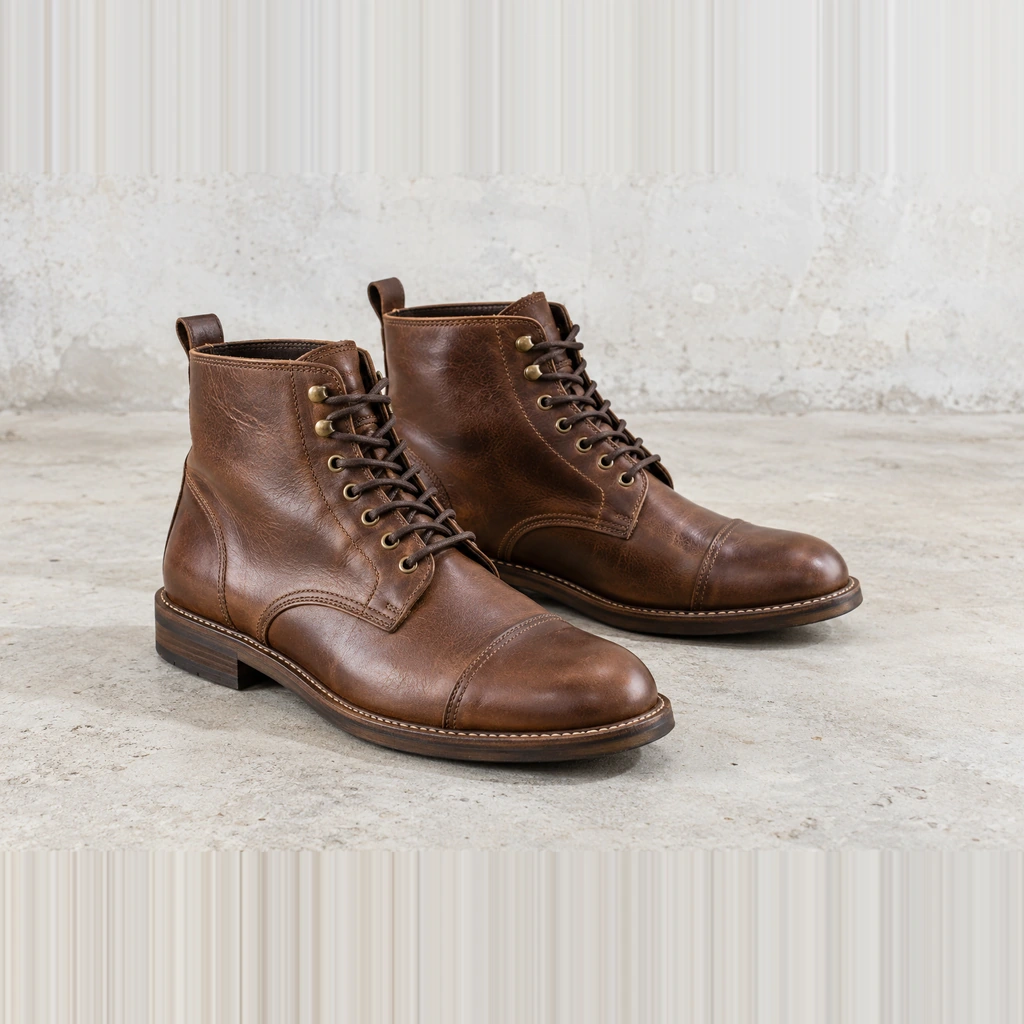
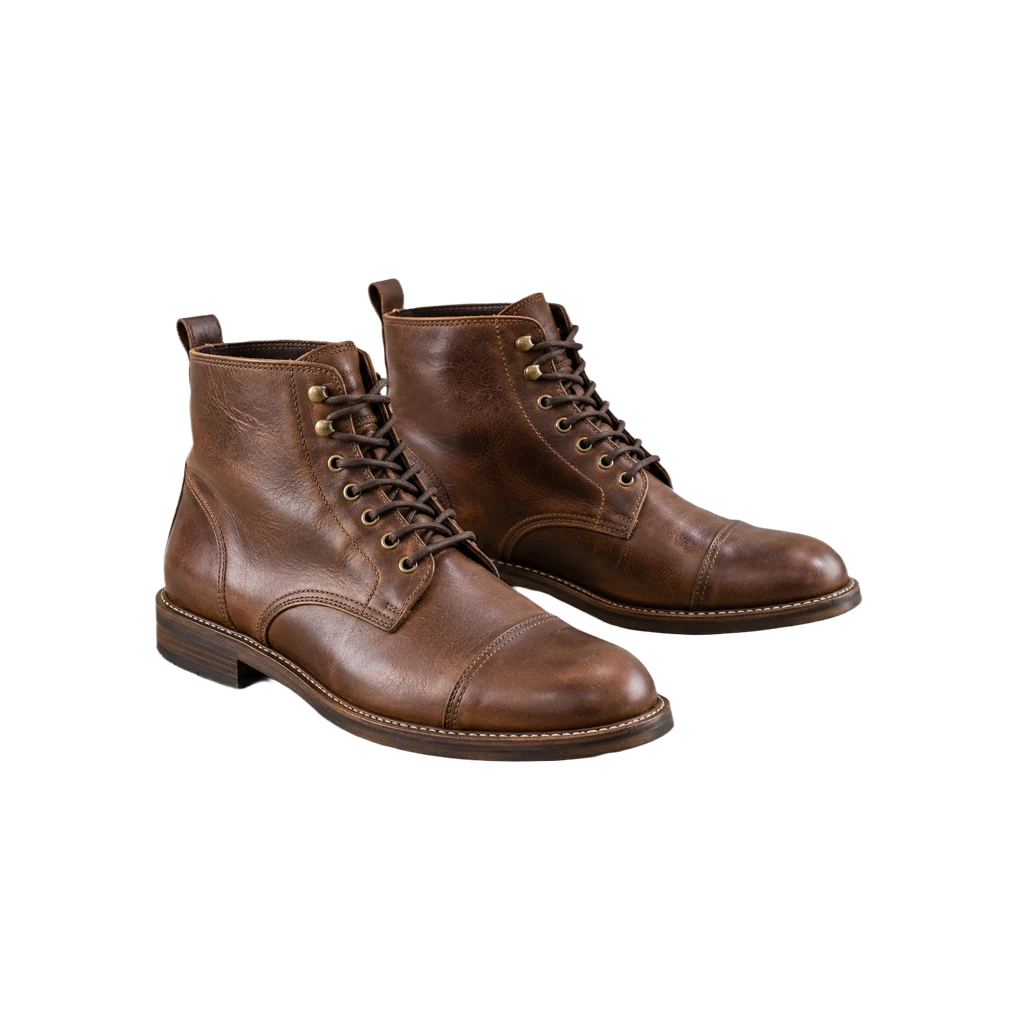
Photograph for easier editing
Use diffuse light to avoid hard glare. Make sure the entire item and any accessory you intend to show are in frame. Separate pale products from a pale backdrop when possible; white-on-white edges are difficult even for good segmentation.
Create the image
- Choose a source in the white-background tool.
- Inspect the cutout before export. Review labels, holes, handles, soles, glass and any support surface.
- Keep the background white, choose a restrained shadow only if it clarifies the object, and export. Check the resulting dimensions.
Check the destination's rules
Marketplaces can differ on image ratios, allowed props, text overlays and how much of the frame the product should fill. Do not assume a white background alone makes a listing compliant. Keep the same margin and scale across a series of products, and avoid making the item look larger or different from what is sold.
If an automatic cutout drops a detached prop, check whether that prop belongs in the listing. Restore it deliberately or choose a source where the composition is clearer. Transparent glass and reflective packaging may need manual work or professional retouching. Keep the product's actual colors consistent between versions: a warm photo placed on pure white can look more yellow than it did on the original backdrop. Compare the result with the physical item under neutral light before calling the catalog set finished.