
Instant BG Remover
Remove a product photo background
Give a product a reusable cutout, then choose a presentation that fits the listing.
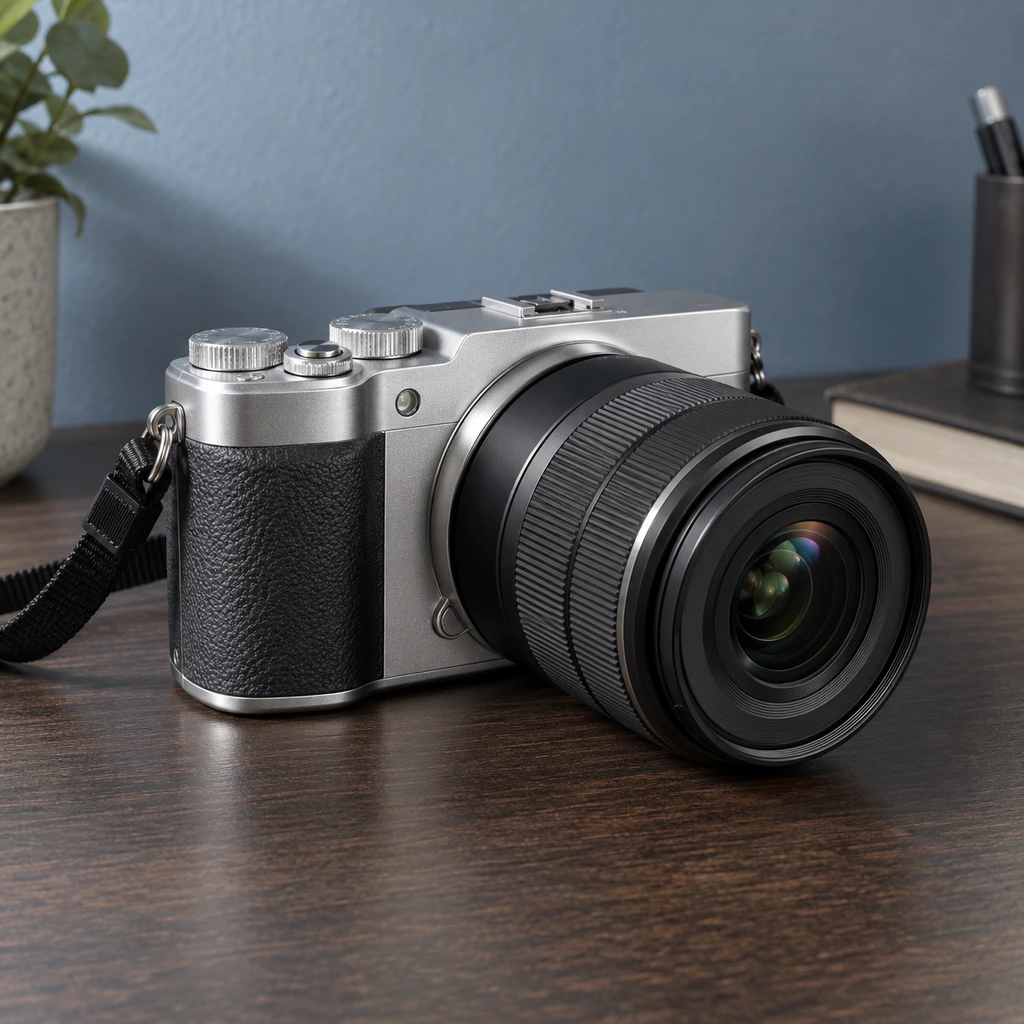
Three steps
- Photograph the whole item with space around it, ideally against a contrasting, even backdrop.
- Upload the source and inspect the automatic result. Check handles, straps, labels, bottle edges and any separate pieces.
- Correct missing or extra regions, choose transparency or a solid color, then export at the source dimensions.
Catalog and business use
A transparent master lets you create consistent product cards for a shop, brochure or marketplace. The editor also offers white backgrounds and a simple shadow. When editing a collection, compare object scale and margins across files before publishing; the batch queue can save individual outputs or a ZIP.
Important composition limits
Automatic segmentation can miss a separate prop or standing surface, or retain a distant fragment. It does not know whether a lemon, stone or gift box is part of the item you intend to sell. Use the original/edited comparison and Keep subject correction for ambiguous groups. Transparent glass and shiny metal can retain original backdrop color. Do not assume an automatic output is ready for a product catalog without inspection.
Common questions
Will labels printed on the product remain?
The app keeps source RGB inside selected foreground regions, but a wrong mask can remove part of a label. Zoom in and check the exported file.
Can I process several products?
Use the batch editor for a queue, then inspect each output separately.
Next steps
White background for products · Batch background remover · Preparing online store images